
Timelines
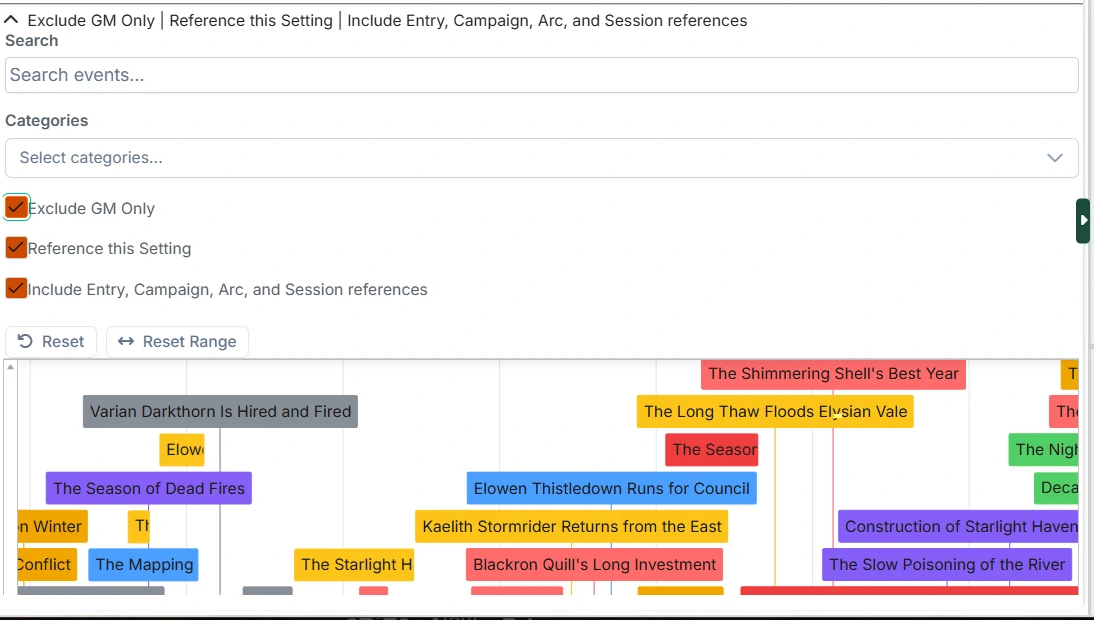
Timelines provide a visual way to see events from your world calendar directly within Campaign Builder. They display notes from the Calendaria module as an interactive timeline, making it easy to track events, plan sessions, and understand the temporal relationships between different story elements.
INFO
Timelines are an optional feature and require the Calendaria module to be installed and active. They can be enabled/disabled in the Module Settings.
Where to Find Timelines
Timeline tabs are available on all major content types:
- Settings
- Entries
- Campaigns
- Arcs
- Sessions
The Timeline Interface
The timeline interface has two main components:
- Filter Panel - Collapsible panel at the top with filtering options
- Timeline Visualization - Interactive timeline display showing calendar events
Filter Panel
The filter panel can be expanded or collapsed by clicking on the header. When collapsed, it shows a summary of the currently active filters.
Text Search
Search for events by name. The search matches against event names and filters the timeline in real-time.
Categories
Filter events by their Calendaria categories. You can select multiple categories to show only events that match at least one of the selected categories. Leave empty to show all categories.
Exclude GM Only
When enabled, hides events marked as GM-only in Calendaria. When disabled, shows all events including GM-only ones. This is useful if you want to create snapshots for players.
Reference Current Content
When viewing a timeline on a specific piece of content (Entry, Campaign, Arc, or Session), this option filters to show only events that explicitly reference that content in their notes. This uses the @UUID[###] link format to detect references - you can type the UUID into the note content, use the Autocomplete Mentions module, or drag/drop from the Campaign Builder directories.
Include Nested Content
This option appears when "Reference Current Content" is enabled and varies based on content type:
- Entries: Include events referencing child entries (e.g., all locations within a region)
- Campaigns: Include events referencing the campaign's arcs and sessions
- Arcs: Include events referencing sessions within the arc's session range
- Settings: Include events referencing all entries, campaigns, arcs, and sessions
Action Buttons
- Reset - Reset all filters to their default values
- Reset Range - Reset the visible date range to show all events (based on the other set filters)
Save filters
All changes to filters, as well as the visible date range are saved immediately, and are specific to the current piece of content. This way you can focus the timeline for a Session (for example) on just the things that matter for your prep, while showing a different view on the Arc or Campaign.
Timeline Visualization
The timeline displays events as colored items on a horizontal time axis.
Navigation
- Zoom: Use the mouse scroll wheel or pinch gesture to zoom in/out.
- Pan: Click and drag on empty space to pan left/right or up/down (which you'll need if you have a large number of events in the same timeframe, so they stack vertically).
- Hover: You can hover over an event to get a tooltip with some basic information.
Event Display
Each event appears as a colored box. Events that take place on a single day have a vertical line to the timeline showing the date. Events that span multiple days (or even years) are shown as a horizontal bar spanning the date range.
The bar colors are determined by the event's color setting in Calendaria.