
Character Details
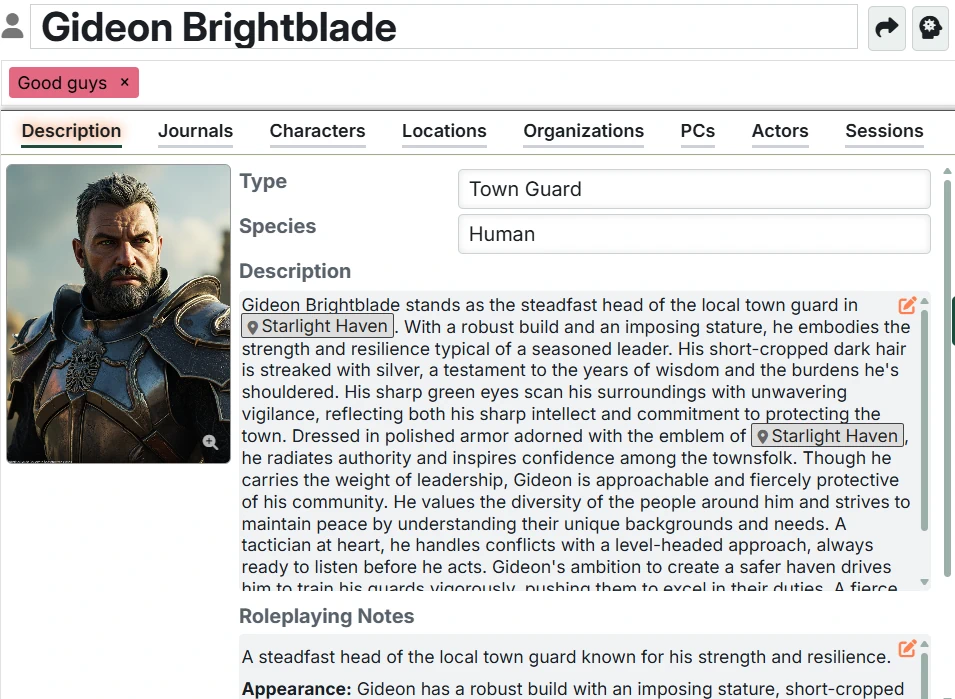
Characters bring your campaign world to life. The Character details interface is where you craft your NPCs and manage the relationships between the Characters and the world.
Overall structure
The overall structure of the Character Details interface is the common Entry interface.
Character-specific differences
There are a few Character-specific details.
Species
Each Character can have an optional species. This can be helpful for you to see at a glance. It is also used by:
- Search (ex. "elf mayor of Illseek")
- Generating Character descriptions in the Create or Update dialogs, particularly in cases where you provide little detail.
You can manage the list of species for your Settings in the Module Settings
Actors
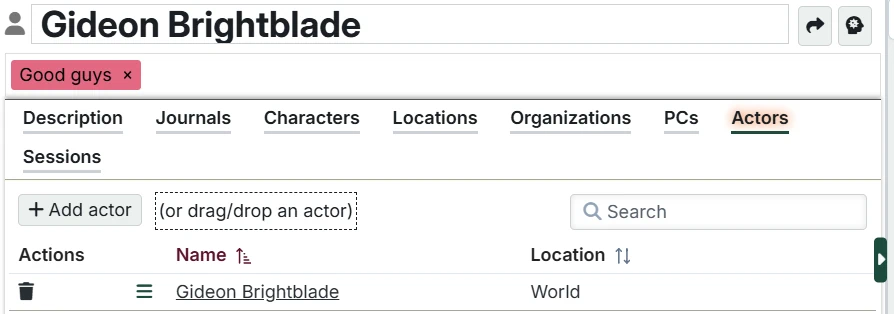
On the Actors tab, you can associate your Character with one or more actors from Foundry. Having more than one may be helpful if you have different character sheets for this Character at different points in time, or perhaps a transformed/polymorphed version, etc. Since your key Characters will be tied to the Current Session, you can access any of them with just a couple clicks.
INFO
While you can attach as many Actors as you want for a Character, the top-most one in the list is special. When you drag the Character into Foundry (ex. from a Session NPC list), it is the first Actor in this list that will be dropped.
INFO
If you have Association Tags configured, the first matching tags on the Character will automatically show the associated actor above the table. You can drag the actor name into Foundry just like you can drag a row from the table. If you have any manually added actors, they will override it and the info label won't appear.
INFO
Deleting an actor in Foundry that is attached to a Character will automatically and safely remove it from the Character.
KNOWN ISSUE
Fairly obscure, but if you reorder the actors on a Character that is showing in the related -Characters list of something in another panel, it won't immediately refresh and dragging the Character will bring the wrong Actor. Just change the tab in the other panel to refresh the list.
Adding actors
Click "Add actor" to select a Foundry actor and connect it to the Character.
You can also drag and drop Foundry actors from Foundry VTT onto the box at the top to make the connection.
Tag-based Actor Association
If you've configured Association Tags to link tags to actors, any matching tags on the Character will automatically show the associated actor in this tab. This provides a convenient way to automatically connect actors based on tags.
When the Actors tab is empty and a tag has an actor association:
- An info message displays showing which tag created the association
- The associated actor appears and can be dragged onto scenes
If you manually add actors, the tag-associated actor won't be displayed separately because it won't be applied -- it is overriden by the manual entries (though the tag color will still show in the tag list).
The actor list
For each actor, you can see it's name and whether it is in the current Foundry world or inside a compendium. You can click the actor name to open its character sheet.

You can also grab and drag the hamburger icon to drag the default token for this actor right onto the canvas, just like dragging from the Foundry sidebar.
Voice Recording
The voice recording feature allows you to record a short voice sample for each Character. This helps you remember what voice or accent you used for each NPC during your games.
INFO
Voice recording is an optional feature that can be disabled in Module Settings.
Recording a Voice Sample
- Click the microphone button on a Character entry
- Select "Record Voice" from the menu
- If a recording already exists, you'll be asked to confirm overwriting it
- Your browser will request microphone access (if not already granted)
- A dialog will appear showing the recording timer
- Click "Stop" when you're finished recording
- The recording will be automatically saved and linked to the Character
Playing a Recording
- Click the microphone button on a Character entry
- Select "Play Voice" from the menu (only available if a recording exists)
- The audio will play through your default audio output
Deleting a Recording
- Click the microphone button on a Character entry
- Select "Delete Recording" from the menu (only available if a recording exists)
WARNING
Deleting a recording only removes the link from the Character. The audio file remains on the server, as Foundry does not permit file deletion. You will need to manually remove unneeded files if you want to clean up.