Arc Manager
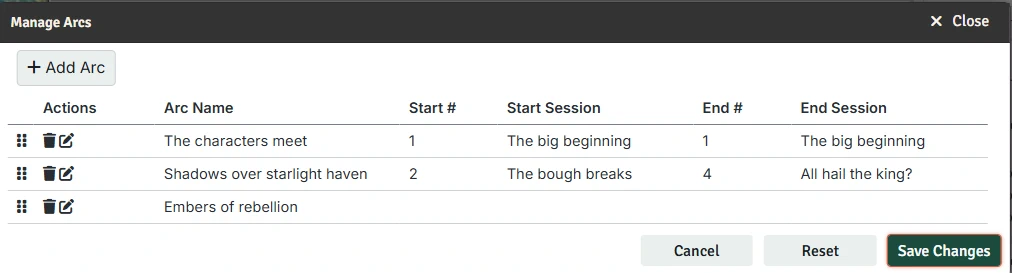
The Arc Manager is where you maintain the Arcs for a Campaign. It helps you keep session coverage clean and see, at a glance, how your campaign is divided into story arcs.
You can open the Arc Manager from the right-click context menu on the name of the Campaign in the Campaign Directory.
Layout
The main table shows one row per Arc:
- Name – The Arc’s name.
- Start # / Start Session – The first session number in the Arc, and that session’s name.
- End # / End Session – The last session number in the Arc, and that session’s name.
Creating Arcs
You can create a new Arc by clicking the Add Arc button. You can also quickly add an Arc from the right-click context menu on the name of a Campaign in the Campaign Directory.
Editing Arcs
You can click on an Arc's name or one of the session numbers to open it for editing. You can also click the edit action button for the row.
This will allow you to edit the Arc's details. Press Escape to undo or Enter to save.
The session names will update to reflect the numbers you enter. This is an helpful way to confirm that you picked the right numbers.
Reordering Arcs and Adjusting Session Ranges
In addition to changing the Session ranges, you can drag and drop the Arc rows to change the order of the Arcs, using the hamburger icon.
The Arc Manager will ensure that every session covered by exactly one Arc and that the Arc order matches the Session order. As you change session numbers and/or move rows around, it will automatically update which sessions belong to which Arc to ensure this remains true.
If you get stuck trying to make the changes you want, it can be helpful to set Arcs to empty and then in a second pass set the ranges.
TIPl
New arcs can be used as future placeholders even if they do not yet cover any sessions. This allows you to build out the basic structure well before you get to that part of the campaign.
Deleting Arcs
You can remove an Arc from the list with the delete button for that row.
Saving and Applying Changes
Like other tables in Campaign Builder, you must hit enter when editing a row for it to save.
No changes are made to your actual Campaign until you hit the Save button in the dialog.
You can click the Reset button to set all the Arcs back to the way they were when you opened the dialog, or the Cancel button to close without any changes.