
Multi-Panel Interface
The Campaign Builder supports splitting your workspace into multiple panels, allowing you to work with different content side-by-side. You can have up to 3 panels open simultaneously, each with its own set of tabs.
Panel Overview
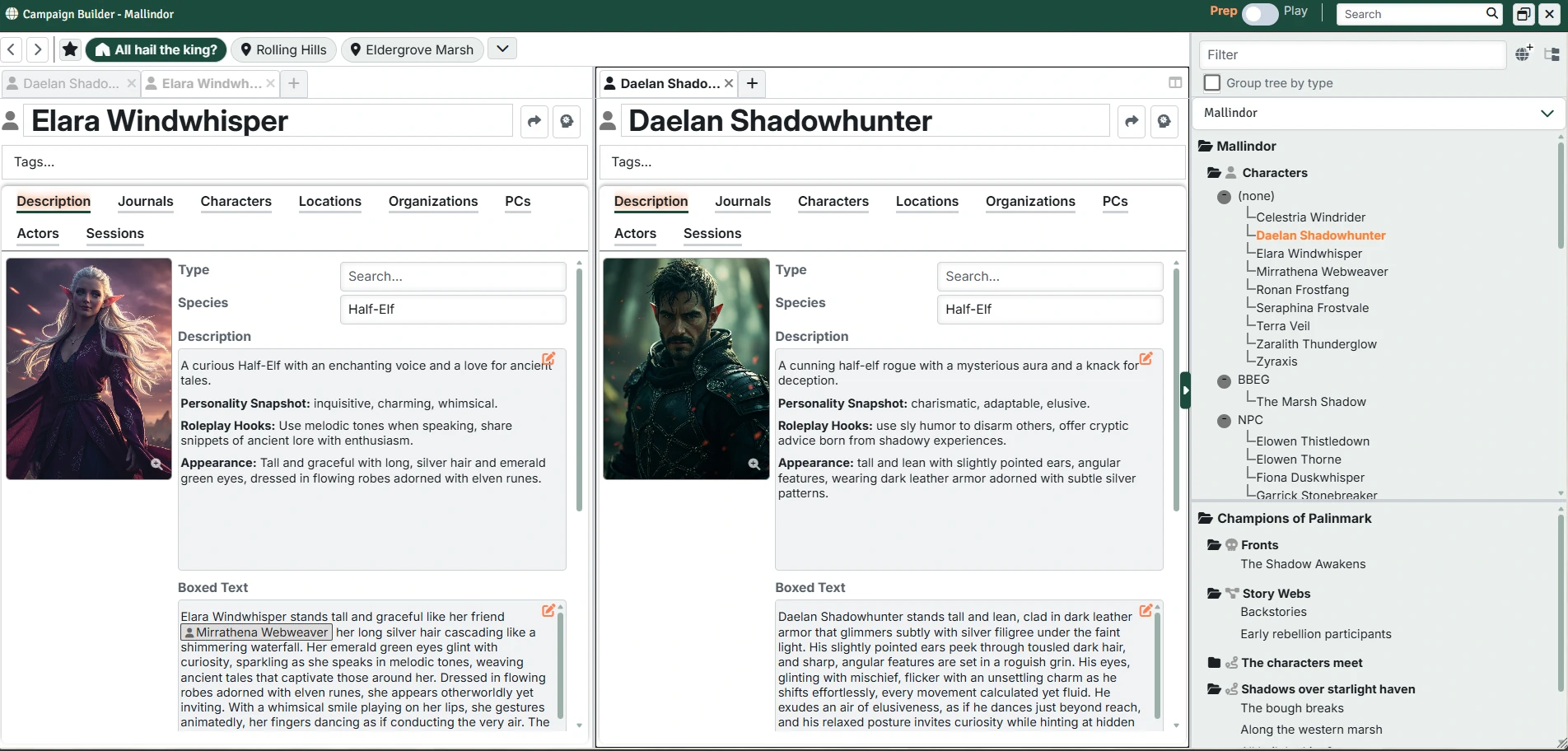
Each panel operates independently with its own:
- Tab bar with tabs for that panel
- Content area showing the active tab's content
- Set of navigation history
Creating Panels

The split button appears on the right side of the tab bar in the right-most panel:
- Click the columns icon to create a new panel to the right
- The current tab moves over to the new panel
- Button will be disabled if there aren't at least 2 tabs (one to stay and one to move)
- A maximum of 3 panels can be created
Working with Panels
Panel Focus

One panel is the primary/Focused Panel at any given time:
- Click anywhere in a panel or a tab within it to focus it
- Focused panel shows full-color tab text (see left panel above), while unfocused panels (see right panel) show muted tab text
The focused panel matters in a few ways:
- The current tab in the focused panel is the one that will be highlighted in the directory trees.
- The "Forward" and "Back" buttons control the current tab in the focused panel.
- Clicking a bookmark will open the content in the focused panel.
Panel Management
- Drag and drop tabs: You can move tabs between panels by dragging the tab header
- Drag and drop from directory: You can drag a Setting, Entry, Campaign, Arc, Session, Front, or Story Web from the directory sidebars onto a panel to open a new tab with that content in the panel
- Auto-collapse: When a panel's last tab is closed, the panel automatically removes
- Resizing: Drag the divider between panels to adjust their widths
- New tabs: Each panel has its own "+" button for creating new tabs