
Organization Details
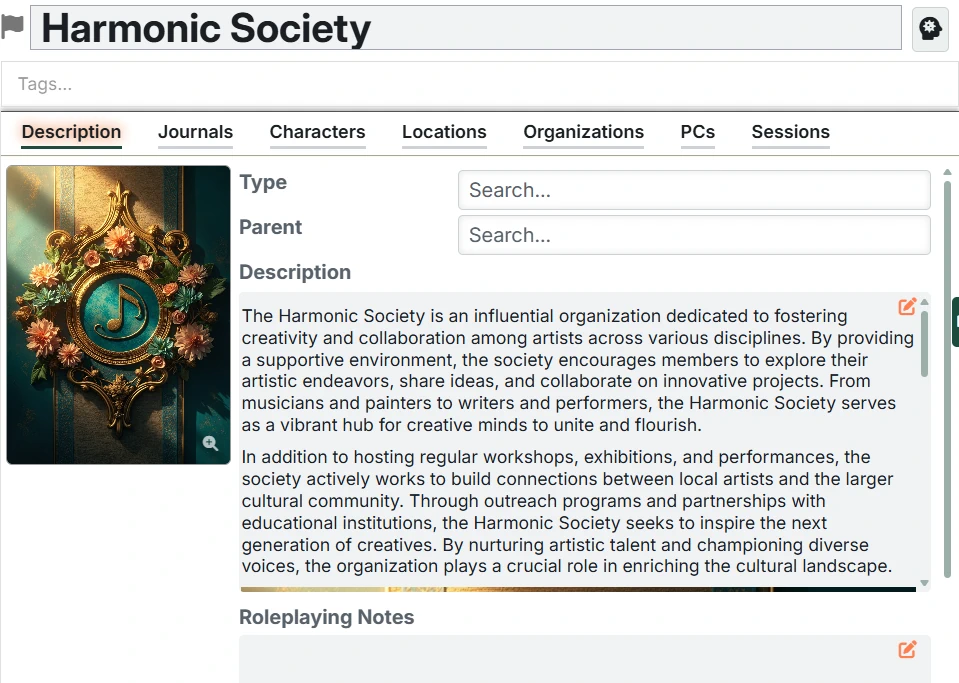
Organizations add depth and complexity to your campaign world by providing structure for social, political, and economic interactions. An organization could be an important clan, a religious order, a town council, or any other group of people. The organization details interface is where you can design these structures and how they fit into your setting.
Overall structure
The overall structure of the Organization Details interface is the common Entry interface.
Organization-specific differences
Organizations just have one special detail.
Parent
Organizations are arranged in a hierarchical structure (that you can see in the Setting Directory). You can change where an organization is in this hierarchy by:
- Dragging an organization (child) in the Setting Directory and dropping it on another (parent).
- Setting the parent field in the Description tab. Just start typing and you'll get a filtered list of available organizations. Delete the parent to make it a top-level organization.
Branches
Branches represent an organization's presence in a specific location. For example, if you have a "Thieves' Guild" organization that operates in multiple cities, you can create branches for each city: "Thieves' Guild (Waterdeep)", "Thieves' Guild (Baldur's Gate)", etc.
Creating branches
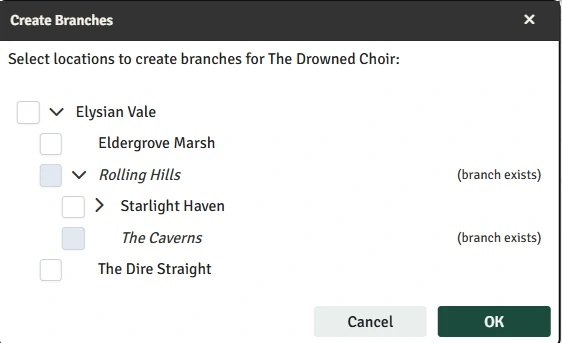
To create branches for an organization:
- Right-click on the organization in the Setting Directory
- Select "Create Branches" from the context menu
- In the dialog, select the locations where you want to create branches
- Click OK to create the branch entries
Branch naming
Branch names are automatically generated in the format: Organization Name (Location Name). For example, a branch of "Magic Society" in "Waterdeep" would be named "Magic Society (Waterdeep)".
When you rename an organization or location, all associated branch names are automatically updated to reflect the change.
Branch display in directory tree
Branches appear in a "Branches" folder under both:
- The parent organization
- The location the branch is in
This makes it easy to find branches whether you're browsing by organization or by location. For organizations in particular, it also makes it easier to avoid clutter in the tree because you can close the whole branch folder when you're not using it.
Note that branches cannot have children.
Branch content view
When you open a branch, you'll see the same interface as a regular organization entry. The branch has its own description, custom fields, and relationships - allowing you to add location-specific details about that organization's presence there.
You cannot change the name, parent Organization, or parent Location of Branches.
The custom fields for Branches can be managed separately than those for Organizations in the Custom Fields configuration.
Deleting branches
Branches can be deleted individually like any other entry, but deleting an organization or location will also delete all of its branches.
WARNING
Yes, I just told you this, but it's worth repeating. Deleting an organization or location will also delete all of its branches. You'll see a confirmation dialog confirming the deletion.